> ## Documentation Index
> Fetch the complete documentation index at: https://docs.zbdpay.com/llms.txt
> Use this file to discover all available pages before exploring further.
# Attestation Set Up
> Configure attestation to ensure your app has not been tampered with using required information for Android and iOS.
In order to ensure we have everything we need to detect whether your app has not been tampered with as part of our attestation check, we require a couple of pieces of information.
Here is a handy video guide:
## Android
For Android, we need your **Bundle ID** or **package name**, i.e.`com.domain.appname`, which you set in your Unity build settings.
This is NOT the appId ZBD provides you.
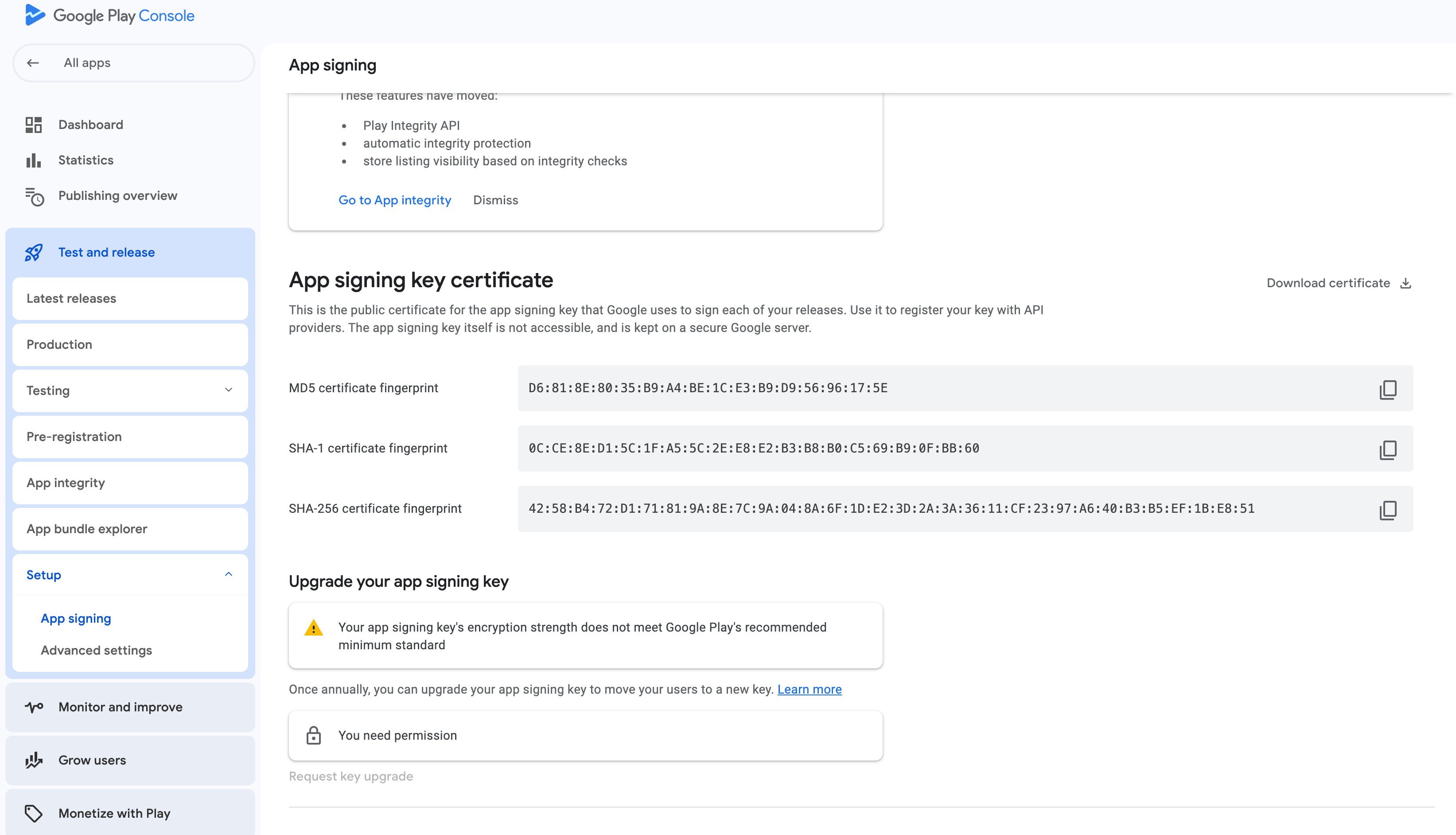
We also need the **SHA-256 hash** of your signing key.
To find your app's SHA-256 hash key for Google Play:
Sign in to your Google Play Console account.
Choose the app for which you need the SHA-256 hash.
In the left-hand menu, select Protected with Play.
During development, you are likely using a custom keystore in Unity, so we will need that **SHA-256 hash** as well. You can generate the SHA-256 hash key for your keystore using the following command:
```bash theme={null}
keytool -list -v -keystore path/to/your.keystore -alias your_alias -storepass your_keystore_password -keypass your_key_password
```
It should look something like this :
EA:A1:69:AA:2F:FC:6D:16:84:ED:06:11:E0:65:2B:E0:BB:9C:5B:E3:41:96:06:E2:3D:85:8F:2C:22:2A:E9:86
## iOS
### App Attest
For iOS builds, you must have **App Attest** enabled on your provisioning profile. The Earn SDK backend uses App Attest to validate the integrity of your game. Without it, attestation checks will fail.
To enable App Attest:
Make sure to regenerate and download your provisioning profile after enabling App Attest, then update it in Xcode.
### Bundle ID & Team ID
For iOS we need your **Bundle ID** i.e.`app id`, e.g.`com.domain.appname` and your **Team ID**.
To find your app's Team ID for Apple Developer:
Sign in to your Apple Developer account
This is NOT the appId ZBD provides you.
 During development, you are likely using a custom keystore in Unity, so we will need that **SHA-256 hash** as well. You can generate the SHA-256 hash key for your keystore using the following command:
```bash theme={null}
keytool -list -v -keystore path/to/your.keystore -alias your_alias -storepass your_keystore_password -keypass your_key_password
```
During development, you are likely using a custom keystore in Unity, so we will need that **SHA-256 hash** as well. You can generate the SHA-256 hash key for your keystore using the following command:
```bash theme={null}
keytool -list -v -keystore path/to/your.keystore -alias your_alias -storepass your_keystore_password -keypass your_key_password
```