> ## Documentation Index
> Fetch the complete documentation index at: https://docs.zbdpay.com/llms.txt
> Use this file to discover all available pages before exploring further.
# Integrating Earn SDK
> How to import and initialize the ZBD Earn SDK.
# Import the SDK
Reach out to your ZBD Customer Success Manager to get access to the Unity SDK package.
To import a package, right-click the assets folder in Unity Editor and choose `"Import Package..."`.
Navigate to the newly imported ZBD folder `Prefabs` and drag and drop the ZBDSDK prefab into your scene.
Due to your specific scene resolution settings and orientation you may need to resize/adjust the included UI elements. We will explain how to do this in more detail later in this documentation, but for now we are assuming the UI element has imported correctly.
# Add your App ID
You should have received your `App ID` from your ZBD Customer Success Manager. You’ll need to set this in the `ZBDController` script which is attached to the `ZBDSDK` game object in the ZBDSDK prefab.
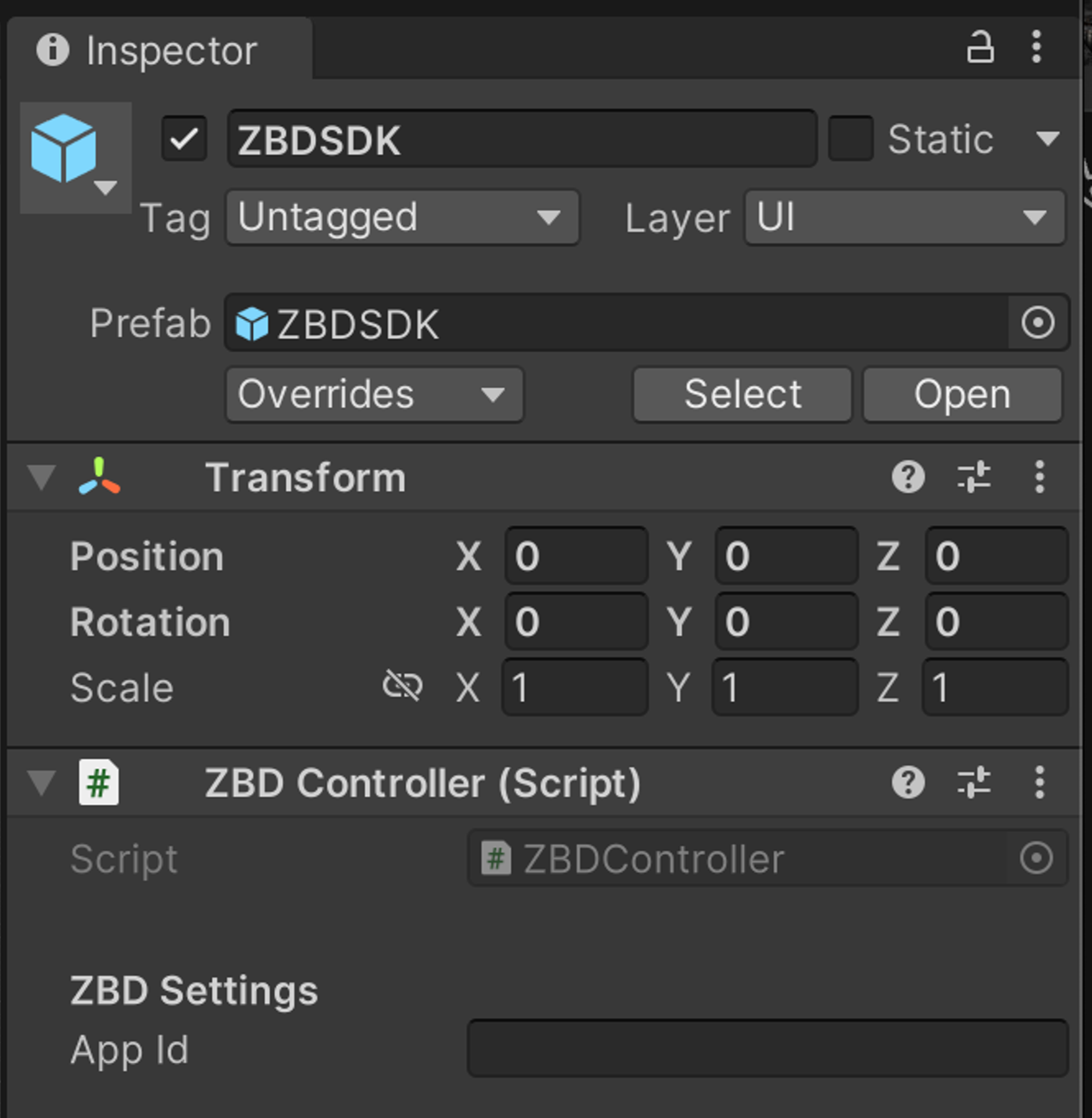 If you have not been given an App ID, for testing purposes only you can use the following ID:
```bash theme={null}
sdkdemo.limitedachievementsats
```
# Initialize the SDK
You can optionally pass a `userId` during initialization — this is your own internal identifier for the user. It's used for various analytics and user linking features, but it is not essential.
Please reach out to your ZBD Customer Success Manager if you face any issues.
Once the ZBDSDK prefab is added you can initiate the SDK from another script, such as your main controller, via the following call:
```csharp theme={null}
// Initialize the SDK with your internal userId
using ZBD;
ZBDController.Instance.Init(userId, completion =>
{
if (completion.success) {
Debug.Log("success");
} else if (completion.maintenance) {
// Platform is in maintenance mode — display a message to the user
Debug.Log("ZBD is currently under maintenance. Please try again later.");
} else {
Debug.LogError(completion.error);
}
}
);
```
### Initializing SDK without `userId`
You can also set the `userId` at any time after initialization by calling:
```csharp theme={null}
ZBDController.Instance.SetUserId("user_id");
```
```csharp theme={null}
using ZBD;
ZBDController.Instance.Init(completion =>
{
if (completion.success) {
Debug.Log("success");
} else if (completion.maintenance) {
Debug.Log("ZBD is currently under maintenance. Please try again later.");
} else {
Debug.LogError(completion.error);
}
}
);
```
This will allow the user to start earning, however **in order to withdraw they will need to download the ZBD app, get their ZBD Gamertag and register it with the ZBD Earn SDK**.
The easiest way to do this is to present the ZBD modal. If the user has not registered their ZBD Gamertag then they will be guided through it inside the modal.
### Handling Maintenance Mode
The ZBD platform may occasionally enter maintenance mode. When this happens, the SDK response will include a `maintenance` flag set to `true`. You should check for this flag during initialization and display an appropriate message to your users.
The `Init` response object contains the following fields:
```csharp theme={null}
public class ZBDInitResponse
{
public bool success;
public bool maintenance;
public string userId;
public string error;
public string type;
}
```
When `maintenance` is `true`:
* The SDK will not be fully operational
* Reward sending will be unavailable
* You should display a user-friendly message (e.g. *"Rewards are temporarily unavailable. Please try again later."*)
* You should **not** treat this as an error — maintenance periods are temporary
Maintenance mode can begin at any time, including while players are actively in a session. This means `Init` may succeed normally, but subsequent calls to `SendReward` or `GetBalance` can return `maintenance = true` during gameplay. You must handle the maintenance flag on **every** SDK response, not just during initialization.
The following SDK methods can return the `maintenance` flag:
| Method | Response Class |
| ------------ | ----------------------- |
| `Init` | `ZBDInitResponse` |
| `SendReward` | `ZBDSendRewardResponse` |
| `GetBalance` | `ZBDBalanceResponse` |
### Presenting SDK Modal
```csharp theme={null}
ZBDModalController.Instance.ShowModal();
```
`ShowModal()` will present a modal prompting the user to enter a ZBD Gamertag, or to sign in if they were not signed in automatically.
Users can also **view their balance** and **initiate a withdrawal** from this modal.
### Detecting Modal Visibility
You may want to stop the gameplay or trigger some other event when the SDK modal becomes visible. You can **detect when the modal is visible** via 2 methods:
**Subscribe to the `ModalIsVisible` event**
```csharp theme={null}
private void Start()
{
ZBDController.Instance.ModalIsVisible += WebViewVisible;
}
void WebViewVisible(bool visible)
{
// handle event here
}
private void OnDestroy()
{
ZBDController.Instance.ModalIsVisible -= WebViewVisible;
}
```
**Invoke `IsModalVisible()`**
You can also call `IsModalVisible()` to check the status of the modal.
```csharp theme={null}
ZBDModalController.Instance.IsModalVisible();
```
### Android Back Button
In Android you can detect whether the modal is open and close it with the following code snippet.
```csharp theme={null}
if (Input.GetKeyDown(KeyCode.Escape))
{
if (ZBDModalController.Instance.IsModalVisible())
{
ZBDModalController.Instance.CloseModal();
}
}
```
If you have not been given an App ID, for testing purposes only you can use the following ID:
```bash theme={null}
sdkdemo.limitedachievementsats
```
# Initialize the SDK
You can optionally pass a `userId` during initialization — this is your own internal identifier for the user. It's used for various analytics and user linking features, but it is not essential.
Please reach out to your ZBD Customer Success Manager if you face any issues.
Once the ZBDSDK prefab is added you can initiate the SDK from another script, such as your main controller, via the following call:
```csharp theme={null}
// Initialize the SDK with your internal userId
using ZBD;
ZBDController.Instance.Init(userId, completion =>
{
if (completion.success) {
Debug.Log("success");
} else if (completion.maintenance) {
// Platform is in maintenance mode — display a message to the user
Debug.Log("ZBD is currently under maintenance. Please try again later.");
} else {
Debug.LogError(completion.error);
}
}
);
```
### Initializing SDK without `userId`
You can also set the `userId` at any time after initialization by calling:
```csharp theme={null}
ZBDController.Instance.SetUserId("user_id");
```
```csharp theme={null}
using ZBD;
ZBDController.Instance.Init(completion =>
{
if (completion.success) {
Debug.Log("success");
} else if (completion.maintenance) {
Debug.Log("ZBD is currently under maintenance. Please try again later.");
} else {
Debug.LogError(completion.error);
}
}
);
```
This will allow the user to start earning, however **in order to withdraw they will need to download the ZBD app, get their ZBD Gamertag and register it with the ZBD Earn SDK**.
The easiest way to do this is to present the ZBD modal. If the user has not registered their ZBD Gamertag then they will be guided through it inside the modal.
### Handling Maintenance Mode
The ZBD platform may occasionally enter maintenance mode. When this happens, the SDK response will include a `maintenance` flag set to `true`. You should check for this flag during initialization and display an appropriate message to your users.
The `Init` response object contains the following fields:
```csharp theme={null}
public class ZBDInitResponse
{
public bool success;
public bool maintenance;
public string userId;
public string error;
public string type;
}
```
When `maintenance` is `true`:
* The SDK will not be fully operational
* Reward sending will be unavailable
* You should display a user-friendly message (e.g. *"Rewards are temporarily unavailable. Please try again later."*)
* You should **not** treat this as an error — maintenance periods are temporary
Maintenance mode can begin at any time, including while players are actively in a session. This means `Init` may succeed normally, but subsequent calls to `SendReward` or `GetBalance` can return `maintenance = true` during gameplay. You must handle the maintenance flag on **every** SDK response, not just during initialization.
The following SDK methods can return the `maintenance` flag:
| Method | Response Class |
| ------------ | ----------------------- |
| `Init` | `ZBDInitResponse` |
| `SendReward` | `ZBDSendRewardResponse` |
| `GetBalance` | `ZBDBalanceResponse` |
### Presenting SDK Modal
```csharp theme={null}
ZBDModalController.Instance.ShowModal();
```
`ShowModal()` will present a modal prompting the user to enter a ZBD Gamertag, or to sign in if they were not signed in automatically.
Users can also **view their balance** and **initiate a withdrawal** from this modal.
### Detecting Modal Visibility
You may want to stop the gameplay or trigger some other event when the SDK modal becomes visible. You can **detect when the modal is visible** via 2 methods:
**Subscribe to the `ModalIsVisible` event**
```csharp theme={null}
private void Start()
{
ZBDController.Instance.ModalIsVisible += WebViewVisible;
}
void WebViewVisible(bool visible)
{
// handle event here
}
private void OnDestroy()
{
ZBDController.Instance.ModalIsVisible -= WebViewVisible;
}
```
**Invoke `IsModalVisible()`**
You can also call `IsModalVisible()` to check the status of the modal.
```csharp theme={null}
ZBDModalController.Instance.IsModalVisible();
```
### Android Back Button
In Android you can detect whether the modal is open and close it with the following code snippet.
```csharp theme={null}
if (Input.GetKeyDown(KeyCode.Escape))
{
if (ZBDModalController.Instance.IsModalVisible())
{
ZBDModalController.Instance.CloseModal();
}
}
```