> ## Documentation Index
> Fetch the complete documentation index at: https://docs.zbdpay.com/llms.txt
> Use this file to discover all available pages before exploring further.
# Troubleshooting
> General troubleshooting guides for the ZBD Earn SDK.
# Build Issues
* If you encounter build issues, it is important to check that the Android and iOS deployment targets and minimum API level are set properly. Refer to [Compatibility](/earn/sdk/compatibility) for more information.
* If you receive a sign up error, please confirm that your Bundle ID / Package Name is the same as the one used whilst setting up the SDK configuration.
* Make sure the stripping level is set to low or minimum in the Unity build settings.
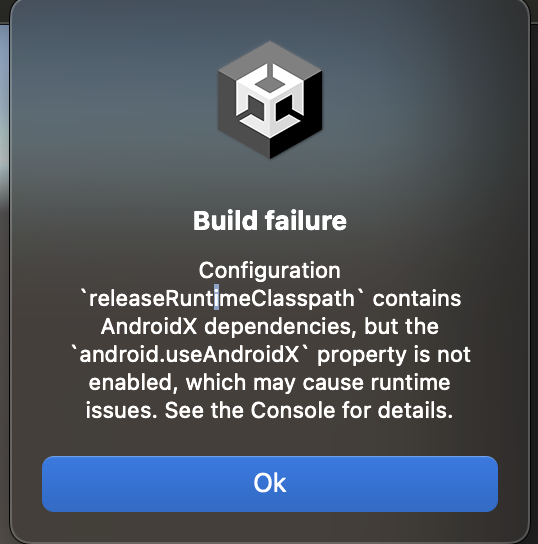
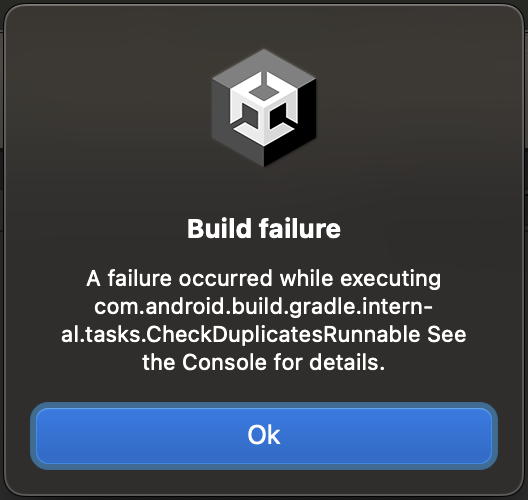
If you get the following build errors on Android please check the **[Building for Android](/earn/sdk/building#building-for-android)** section.
 # Performance Issues
The ZBD Earn SDK forces hardware acceleration in Android builds, this can cause some issues with games.
If you notice performance issues after integrating the ZBD Earn SDK you can delete the `ModifyUnityAndroidAppManifestSample.cs` file in the `Assets/Editor/` folder.
# Unity Input Settings Issues
To ensure maximum compatibility when working with the ZBD Earn SDK, it is recommended to adjust Unity’s input configuration.
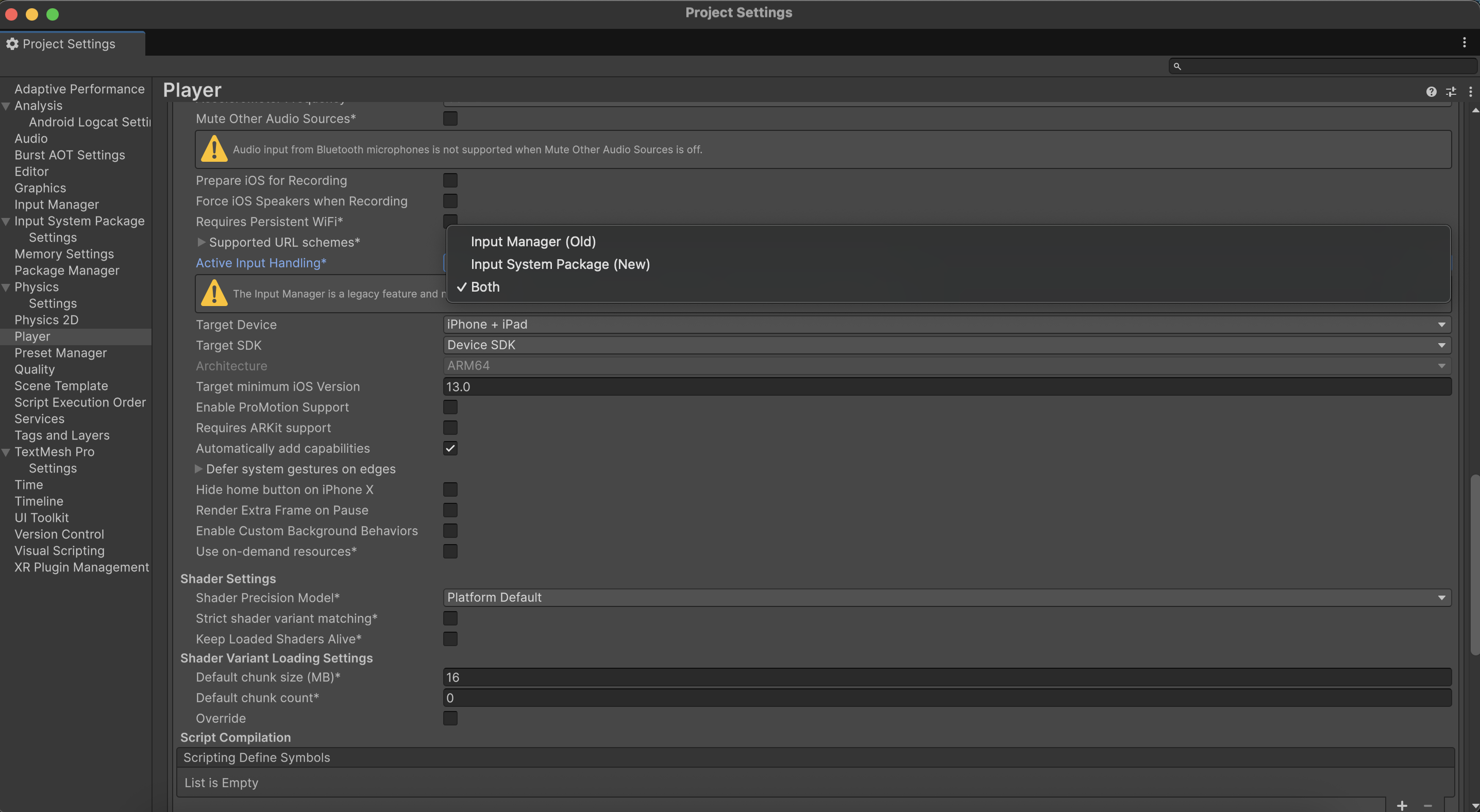
The Unity Editor’s WebView may influence how input is handled, so setting **Active Input Handling** to **Both** helps maintain consistent support across the Old Input Manager and the New Input System.
In Unity, go to Edit → Project Settings.
In the Project Settings window, select Player, then scroll to the Other Settings section.
Find Active Input Handling and set it to Both — regardless of whether your project uses the Old Input Manager or the New Input System.
# Performance Issues
The ZBD Earn SDK forces hardware acceleration in Android builds, this can cause some issues with games.
If you notice performance issues after integrating the ZBD Earn SDK you can delete the `ModifyUnityAndroidAppManifestSample.cs` file in the `Assets/Editor/` folder.
# Unity Input Settings Issues
To ensure maximum compatibility when working with the ZBD Earn SDK, it is recommended to adjust Unity’s input configuration.
The Unity Editor’s WebView may influence how input is handled, so setting **Active Input Handling** to **Both** helps maintain consistent support across the Old Input Manager and the New Input System.
In Unity, go to Edit → Project Settings.
In the Project Settings window, select Player, then scroll to the Other Settings section.
Find Active Input Handling and set it to Both — regardless of whether your project uses the Old Input Manager or the New Input System.
 # Testing from an Unsupported Region or Unity Editor
If your game is configured to reward players only in specific regions, but you as a developer are located outside of those regions, or if you are testing directly in the Unity Editor, you may run into issues with the SDK's anti-fraud system.
The anti-fraud system may block sign-ups or gameplay from the Unity Editor or from unsupported regions. To work around this during development and testing:
Connect to a VPN set to one of your game's supported regions and sign up for a ZBD account from within the game. This ensures your account is created in a supported region.
Signing up through a VPN may place your account in **limited earnings mode**. This is expected behavior from the anti-fraud system.
Your Support ID is logged to the console when the SDK is initialized. Look for the following log entry:
```
ZBD: SupportId:
```
To remove the limited earnings restriction, you have two options:
* **Contact your ZBD account manager** — Send them your Support ID so they can whitelist your device.
* **Use the Developer Dashboard** — If you have been granted access to the device whitelisting feature, you can whitelist your device directly from the dashboard.
This process is only necessary for development and testing purposes. Your end users in supported regions will not encounter these restrictions during normal gameplay.
# Integrity Check Failures
If you receive either of the following errors:
```
{"success":false,"message":"Failed progress validation.","errorCode":"400P4V"}
```
```
ZBD: Error sending reward: {"success":false,"message":"Failed reward validation.","errorCode":"400R5V"}
```
This means your editor or device is failing ZBD's integrity checks. This typically happens because:
* You are testing from a **non-mobile device** (e.g. Unity Editor on desktop) rather than a real mobile device.
* Your **attestation has not been set up** correctly. Refer to the [Attestation Setup](/earn/sdk/attestation-setup) guide.
To resolve this, contact your ZBD account manager and provide your **Support ID** so they can whitelist it. You can find your Support ID in the console logs when the SDK initializes:
```
ZBD: SupportId:
```
# Testing from an Unsupported Region or Unity Editor
If your game is configured to reward players only in specific regions, but you as a developer are located outside of those regions, or if you are testing directly in the Unity Editor, you may run into issues with the SDK's anti-fraud system.
The anti-fraud system may block sign-ups or gameplay from the Unity Editor or from unsupported regions. To work around this during development and testing:
Connect to a VPN set to one of your game's supported regions and sign up for a ZBD account from within the game. This ensures your account is created in a supported region.
Signing up through a VPN may place your account in **limited earnings mode**. This is expected behavior from the anti-fraud system.
Your Support ID is logged to the console when the SDK is initialized. Look for the following log entry:
```
ZBD: SupportId:
```
To remove the limited earnings restriction, you have two options:
* **Contact your ZBD account manager** — Send them your Support ID so they can whitelist your device.
* **Use the Developer Dashboard** — If you have been granted access to the device whitelisting feature, you can whitelist your device directly from the dashboard.
This process is only necessary for development and testing purposes. Your end users in supported regions will not encounter these restrictions during normal gameplay.
# Integrity Check Failures
If you receive either of the following errors:
```
{"success":false,"message":"Failed progress validation.","errorCode":"400P4V"}
```
```
ZBD: Error sending reward: {"success":false,"message":"Failed reward validation.","errorCode":"400R5V"}
```
This means your editor or device is failing ZBD's integrity checks. This typically happens because:
* You are testing from a **non-mobile device** (e.g. Unity Editor on desktop) rather than a real mobile device.
* Your **attestation has not been set up** correctly. Refer to the [Attestation Setup](/earn/sdk/attestation-setup) guide.
To resolve this, contact your ZBD account manager and provide your **Support ID** so they can whitelist it. You can find your Support ID in the console logs when the SDK initializes:
```
ZBD: SupportId:
```