> ## Documentation Index
> Fetch the complete documentation index at: https://docs.zbdpay.com/llms.txt
> Use this file to discover all available pages before exploring further.
# Manage Project
> Edit project settings, manage access, and control your project lifecycle
Keep your projects organized and up-to-date. From updating branding to archiving completed projects, here's everything you need to know about project management in ZBD.
**Critical Actions**: Some project management actions (like archiving) are irreversible. Always ensure you understand the implications before proceeding.
## Editing Project Details
Your project's details appear in payment flows and help organize your dashboard. Keep them current and professional.
### What You Can Edit
Appears in payment notifications to users
Internal notes for your team's reference
Your logo shown during payment flows
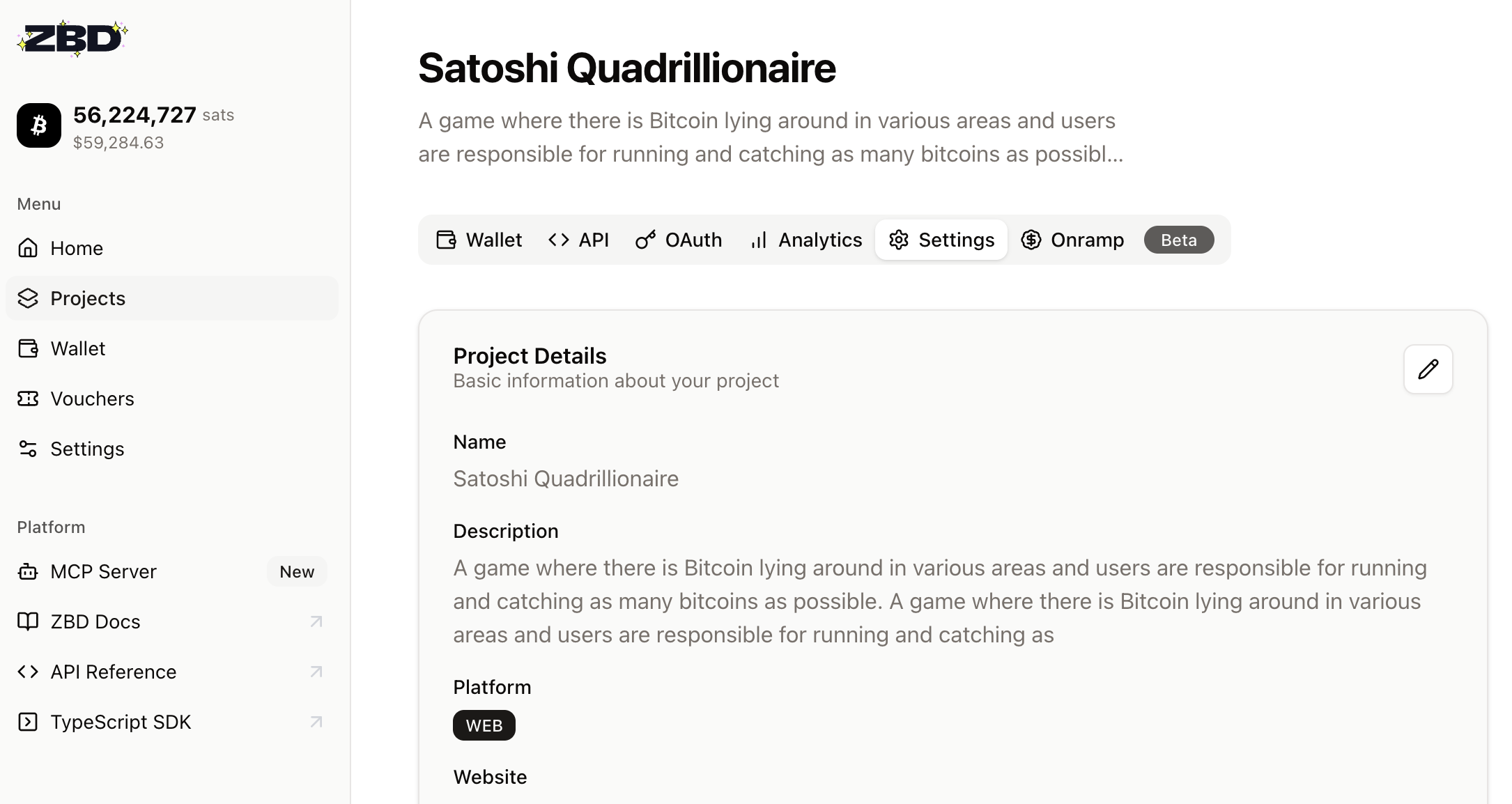
### How to Edit
Editing a project details is simple:
1. Navigate to **Projects** page
2. Find your project card
3. Click the project card to enter project view
4. Select **Settings** tab
5. Edit the details you want to change
6. Click **Update**
 ## Archiving Projects
When a project is no longer needed, archiving keeps your dashboard clean while preserving records.
**Immediate Effects of Archiving**:
* API key is permanently disabled
* No new transactions possible
* Wallet funds auto-transfer to main wallet
* Action cannot be undone
### When to Archive
* Project development is cancelled
* App/game has been sunset
* Migrating to a new project
* Cleaning up test projects
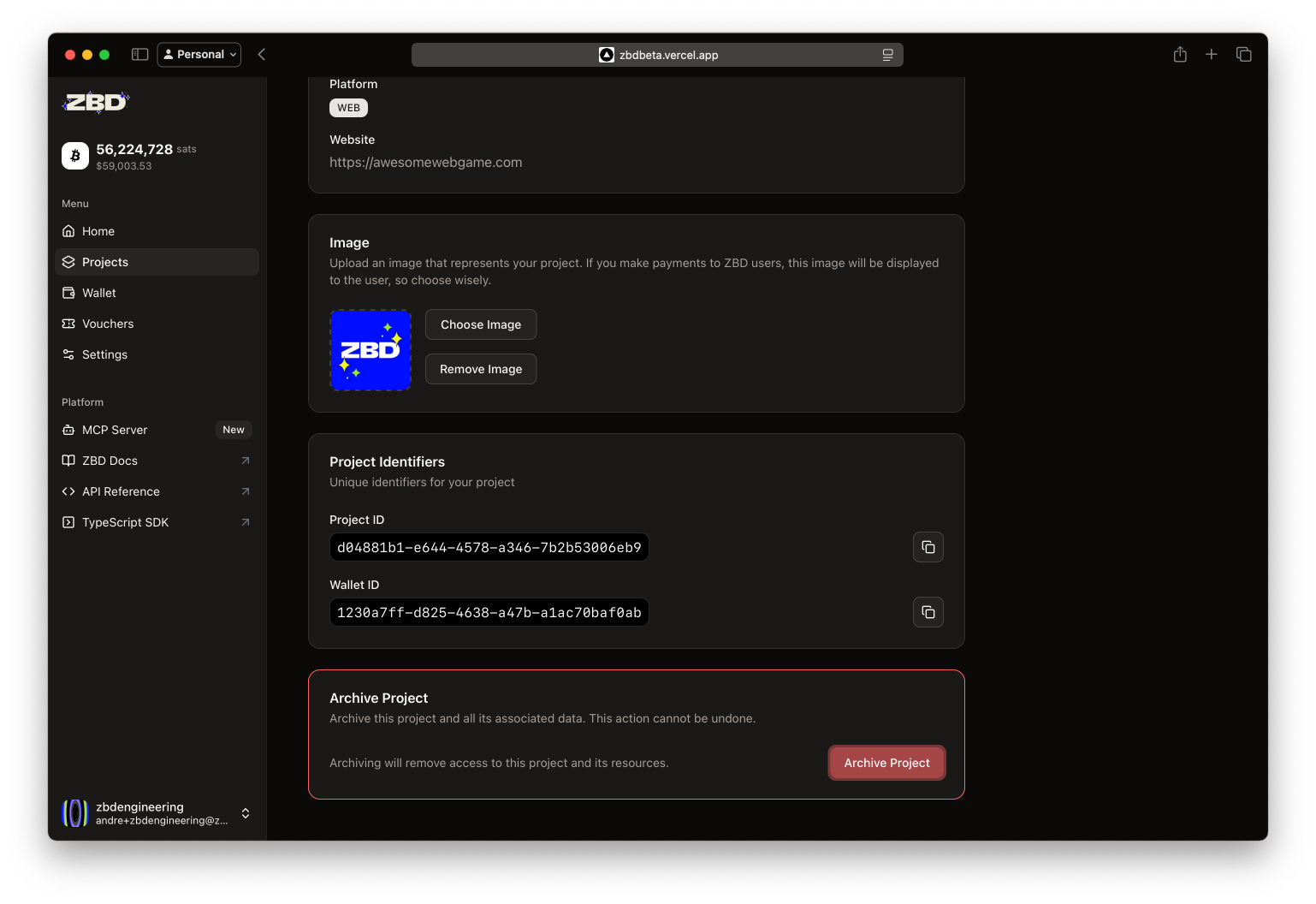
### How to Archive
Navigate to the project you want to archive
Click the Settings tab on the top
Scroll down and choose **Archive Project** from advanced options
## Archiving Projects
When a project is no longer needed, archiving keeps your dashboard clean while preserving records.
**Immediate Effects of Archiving**:
* API key is permanently disabled
* No new transactions possible
* Wallet funds auto-transfer to main wallet
* Action cannot be undone
### When to Archive
* Project development is cancelled
* App/game has been sunset
* Migrating to a new project
* Cleaning up test projects
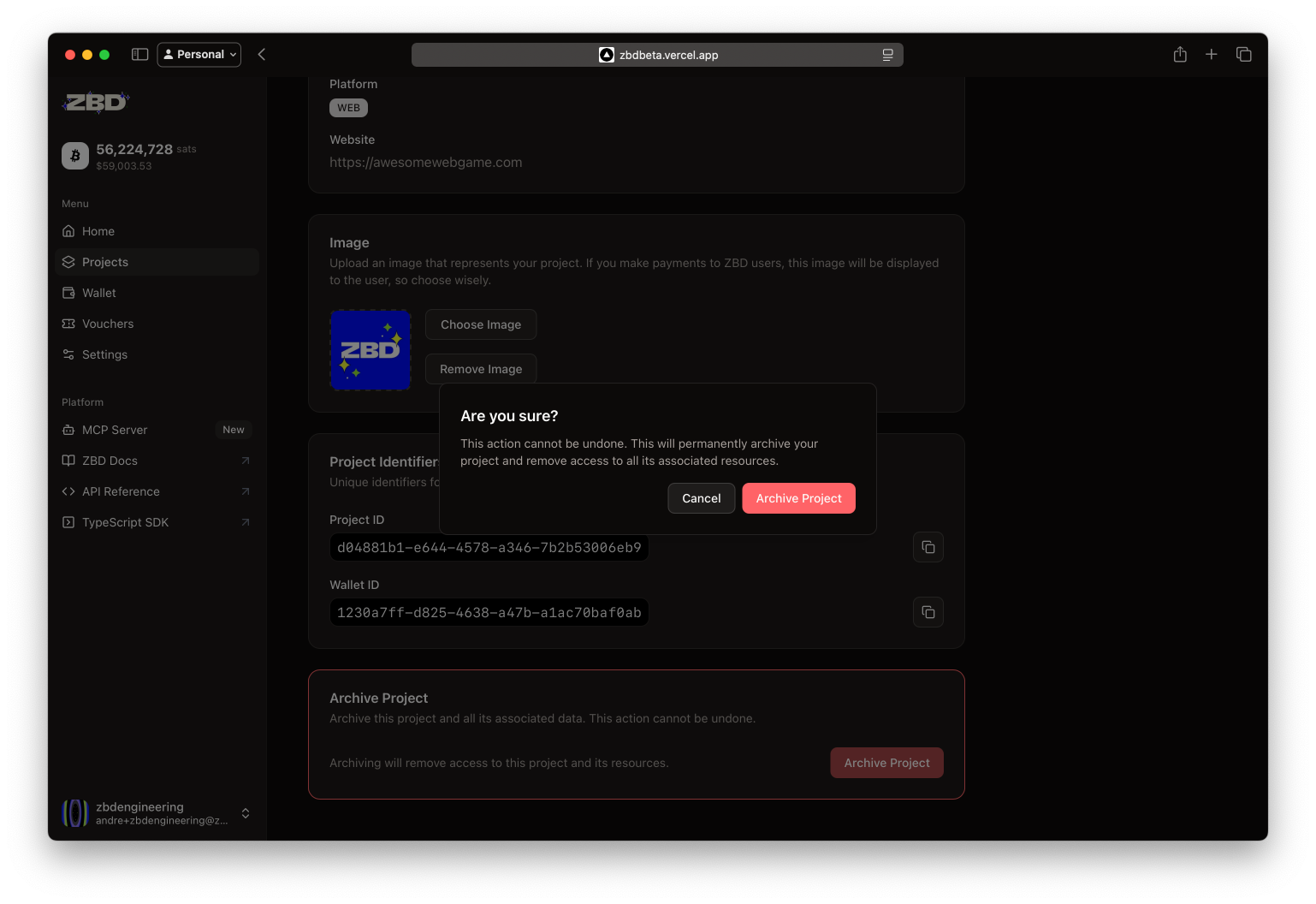
### How to Archive
Navigate to the project you want to archive
Click the Settings tab on the top
Scroll down and choose **Archive Project** from advanced options
 Read the warning and click **Archive** to confirm
 ## Next Steps
Secure your API keys and set up IP allowlisting
Track your project's financial activity
Discuss enterprise features for larger teams
***
**Pro Tip**: Set up a project naming convention early. As you scale, having organized projects with clear names like "AppName-Prod-US" and "AppName-Dev-EU" will save hours of confusion.
## Next Steps
Secure your API keys and set up IP allowlisting
Track your project's financial activity
Discuss enterprise features for larger teams
***
**Pro Tip**: Set up a project naming convention early. As you scale, having organized projects with clear names like "AppName-Prod-US" and "AppName-Dev-EU" will save hours of confusion.