> ## Documentation Index
> Fetch the complete documentation index at: https://docs.zbdpay.com/llms.txt
> Use this file to discover all available pages before exploring further.
# Next.js
> Learn how to use the ZBD with Next.js and our Playground Starter Kit.
## Playground Starter Kit
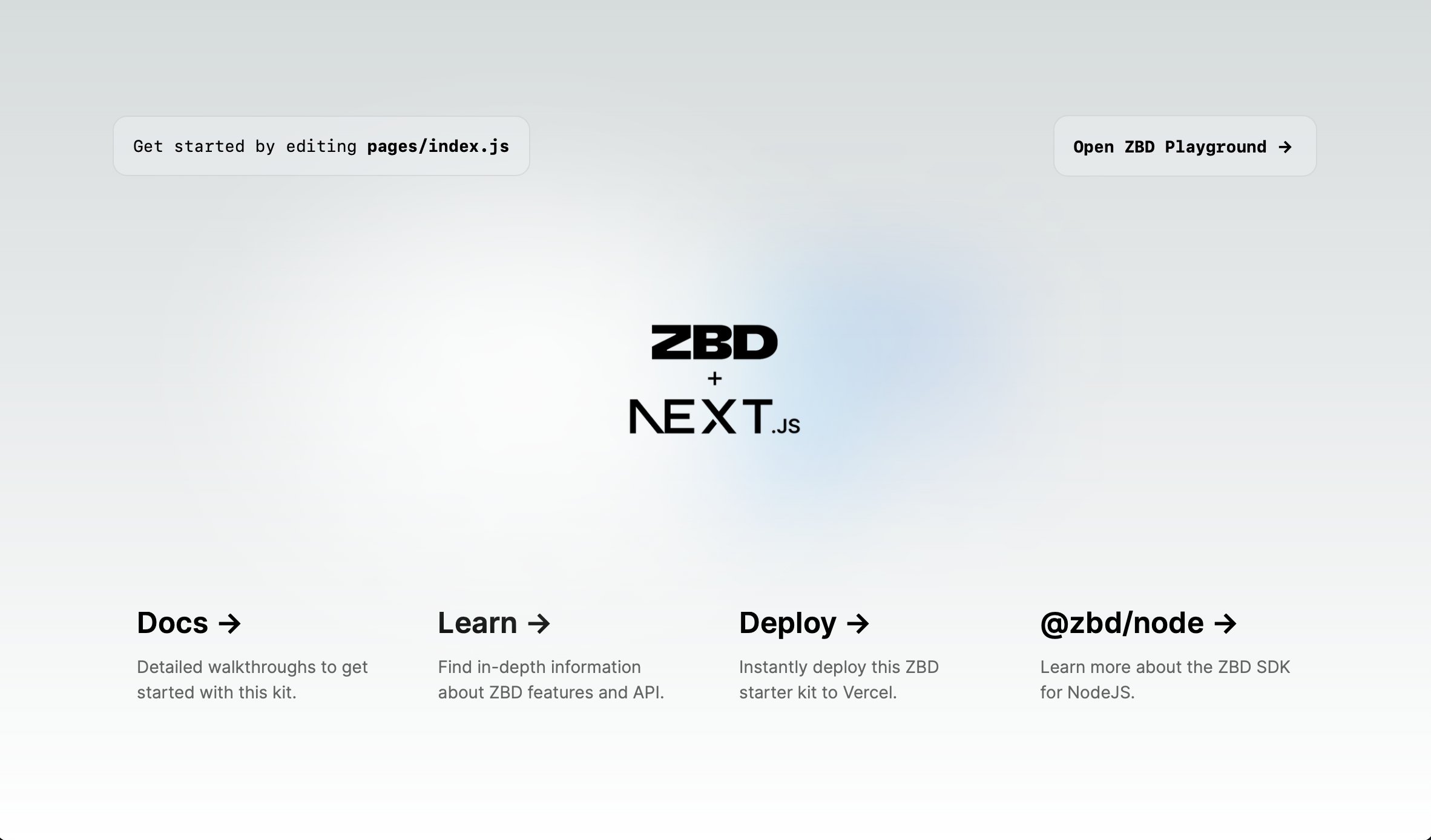 The ZBD + Next.js Playground Starter Kit is an application codebase that allows you to quickly get started with ZBD and Next.js. It includes two main sections: a ZBD API Playground and a Starter Kit for ZBD-powered Next.js applications.
Open the ZBD + Next.js Playground
View the source code.
} color="#000000" href="https://vercel.com/new/clone?repository-url=https%3A%2F%2Fgithub.com%2Fzebedeeio%2Fnextjs-zebedee-starter&env=ZBD_API_KEY&envDescription=Your%20ZBD%20project%20API%20key&demo-title=ZBD%20%2B%20Next.js%20Starter&demo-description=Starter%20kit%20for%20using%20ZBD%20API%20with%20Next.js%20fullstack%20applications&demo-url=https%3A%2F%2Fnextjs-zebedee-starter.vercel.app%2F&demo-image=https%3A%2F%2Fi.imgur.com%2FNf8wRgv.png">
1-click deploy your own instance.
## Next.js
To use ZBD with Next.js and complete this guide, you will need the following:
* [ZBD Project with a Live API key](/get-started/api-keys)
### 1. Create a Next.js project
Start with a brand new Next.js project. To begin run the following command and walk through the initializing steps:
```bash theme={null}
npx create-next-app@latest
```
### 2. Install @zbdpay/payments-sdk Node.js SDK
Install ZBD:
```bash yarn theme={null}
yarn add @zbdpay/payments-sdk
```
```bash npm theme={null}
npm install @zbdpay/payments-sdk
```
```bash pnpm theme={null}
pnpm add @zbdpay/payments-sdk
```
### 3. Create Send and Receive API routes
Create a new file `/app/api/receive/route.ts` and add the following code to create an API route that will receive instant Bitcoin payments:
```js theme={null}
import { NextResponse } from 'next/server';
import ZbdPayments from '@zbdpay/payments-sdk';
const ZBD_API_KEY = 'b7YW3s2JzZKGcXjIf5Dqof8wjKT2RuWr8'; // dummy key
const client = new ZbdPayments({
apikey: ZBD_API_KEY,
});
export async function POST() {
try {
const data = await client.lightningCharges.create({
amount: '100000',
callbackUrl: 'https://your-app.com/zbd-callback',
description: 'Next.js + ZBD!',
});
return NextResponse.json(data);
} catch (error) {
return NextResponse.json({ error });
}
}
```
Then create a new file `/app/api/send/route.ts` and add the following code to create an API route that will send Bitcoin Lightning Address payments:
```js theme={null}
import { NextResponse } from 'next/server';
import ZbdPayments from '@zbdpay/payments-sdk';
const ZBD_API_KEY = 'b7YW3s2JzZKGcXjIf5Dqof8wjKT2RuWr8';
const client = new ZbdPayments({
apikey: ZBD_API_KEY,
});
export async function POST() {
try {
const data = await client.lightningAddress.sendPayment({
lnAddress: "andreneves@zbd.gg", // Who is the recipient?
amount: "100000", // 100 satoshis (100,000 msats)
comment: "Next.js + ZBD!",
});
return NextResponse.json(data);
} catch (error) {
return NextResponse.json({ error });
}
}
```
### 4. Run your Next.js server
Run the following command to start your Next.js server:
```bash yarn theme={null}
yarn dev
```
```bash npm theme={null}
npm run dev
```
Using an API tool like [Postman](https://postman.com), you should be able to make a POST call to this endpoint and receive a JSON response with a payment request:
```bash theme={null}
https://example.com/api/request
```
You're looking for the `data.invoice.request` property in the JSON response. It starts with `lnbc1` and is the payment request anyone in the Bitcoin Lightning Network can use to pay you.
```
lnbc1u1pjdlax9pp5t7jhkd7h2wntd4f2v7xp22dknmjxp0q8nm7hfcny4p7a5mr7x3rsdp9f4hkueteypshggrfde6x2unwv46zqumsv4jkgcqzzsxqzjcsp5dsayu6m6632p28rnkeeqsr7d54amrkv6wh46yrv42gdgca8xl8gs9qyyssqgj2zrkax733rzulfkzc5mqsr8fpwrva82stpa7e0frw32722trv37jlq8mvlqfp8y75lr6mz63zd7qnxar8hhsehuy22pvfq6wjxwqqqa60lx3
```
Charges and payment requests are usually shown to users as QR codes that can be scanned by mobile apps (e.g. [ZBD](https://zbd.one/download)). Read [Callbacks](/payments/api/callbacks) to understand how to receive updates about your payment asynchronously.
Using an API tool like [Postman](https://postman.com), you should be able to make a POST call to this endpoint and receive a JSON response with the payment success message:
```bash theme={null}
https://example.com/api/send
```
You're looking for the `status` of `completed` to know that the payment settled successfully.
Payments in the Lightning Network are asynchronous so you may see a response stating the payment is `processing`. This is expected -- use the `callbackUrl` property to receive updates about your payments.
### 5. Try it yourself
You can now send and receive instant Bitcoin payments using Next.js + ZBD!
See the full source code.
The ZBD + Next.js Playground Starter Kit is an application codebase that allows you to quickly get started with ZBD and Next.js. It includes two main sections: a ZBD API Playground and a Starter Kit for ZBD-powered Next.js applications.
Open the ZBD + Next.js Playground
View the source code.
} color="#000000" href="https://vercel.com/new/clone?repository-url=https%3A%2F%2Fgithub.com%2Fzebedeeio%2Fnextjs-zebedee-starter&env=ZBD_API_KEY&envDescription=Your%20ZBD%20project%20API%20key&demo-title=ZBD%20%2B%20Next.js%20Starter&demo-description=Starter%20kit%20for%20using%20ZBD%20API%20with%20Next.js%20fullstack%20applications&demo-url=https%3A%2F%2Fnextjs-zebedee-starter.vercel.app%2F&demo-image=https%3A%2F%2Fi.imgur.com%2FNf8wRgv.png">
1-click deploy your own instance.
## Next.js
To use ZBD with Next.js and complete this guide, you will need the following:
* [ZBD Project with a Live API key](/get-started/api-keys)
### 1. Create a Next.js project
Start with a brand new Next.js project. To begin run the following command and walk through the initializing steps:
```bash theme={null}
npx create-next-app@latest
```
### 2. Install @zbdpay/payments-sdk Node.js SDK
Install ZBD:
```bash yarn theme={null}
yarn add @zbdpay/payments-sdk
```
```bash npm theme={null}
npm install @zbdpay/payments-sdk
```
```bash pnpm theme={null}
pnpm add @zbdpay/payments-sdk
```
### 3. Create Send and Receive API routes
Create a new file `/app/api/receive/route.ts` and add the following code to create an API route that will receive instant Bitcoin payments:
```js theme={null}
import { NextResponse } from 'next/server';
import ZbdPayments from '@zbdpay/payments-sdk';
const ZBD_API_KEY = 'b7YW3s2JzZKGcXjIf5Dqof8wjKT2RuWr8'; // dummy key
const client = new ZbdPayments({
apikey: ZBD_API_KEY,
});
export async function POST() {
try {
const data = await client.lightningCharges.create({
amount: '100000',
callbackUrl: 'https://your-app.com/zbd-callback',
description: 'Next.js + ZBD!',
});
return NextResponse.json(data);
} catch (error) {
return NextResponse.json({ error });
}
}
```
Then create a new file `/app/api/send/route.ts` and add the following code to create an API route that will send Bitcoin Lightning Address payments:
```js theme={null}
import { NextResponse } from 'next/server';
import ZbdPayments from '@zbdpay/payments-sdk';
const ZBD_API_KEY = 'b7YW3s2JzZKGcXjIf5Dqof8wjKT2RuWr8';
const client = new ZbdPayments({
apikey: ZBD_API_KEY,
});
export async function POST() {
try {
const data = await client.lightningAddress.sendPayment({
lnAddress: "andreneves@zbd.gg", // Who is the recipient?
amount: "100000", // 100 satoshis (100,000 msats)
comment: "Next.js + ZBD!",
});
return NextResponse.json(data);
} catch (error) {
return NextResponse.json({ error });
}
}
```
### 4. Run your Next.js server
Run the following command to start your Next.js server:
```bash yarn theme={null}
yarn dev
```
```bash npm theme={null}
npm run dev
```
Using an API tool like [Postman](https://postman.com), you should be able to make a POST call to this endpoint and receive a JSON response with a payment request:
```bash theme={null}
https://example.com/api/request
```
You're looking for the `data.invoice.request` property in the JSON response. It starts with `lnbc1` and is the payment request anyone in the Bitcoin Lightning Network can use to pay you.
```
lnbc1u1pjdlax9pp5t7jhkd7h2wntd4f2v7xp22dknmjxp0q8nm7hfcny4p7a5mr7x3rsdp9f4hkueteypshggrfde6x2unwv46zqumsv4jkgcqzzsxqzjcsp5dsayu6m6632p28rnkeeqsr7d54amrkv6wh46yrv42gdgca8xl8gs9qyyssqgj2zrkax733rzulfkzc5mqsr8fpwrva82stpa7e0frw32722trv37jlq8mvlqfp8y75lr6mz63zd7qnxar8hhsehuy22pvfq6wjxwqqqa60lx3
```
Charges and payment requests are usually shown to users as QR codes that can be scanned by mobile apps (e.g. [ZBD](https://zbd.one/download)). Read [Callbacks](/payments/api/callbacks) to understand how to receive updates about your payment asynchronously.
Using an API tool like [Postman](https://postman.com), you should be able to make a POST call to this endpoint and receive a JSON response with the payment success message:
```bash theme={null}
https://example.com/api/send
```
You're looking for the `status` of `completed` to know that the payment settled successfully.
Payments in the Lightning Network are asynchronous so you may see a response stating the payment is `processing`. This is expected -- use the `callbackUrl` property to receive updates about your payments.
### 5. Try it yourself
You can now send and receive instant Bitcoin payments using Next.js + ZBD!
See the full source code.